You can export Bitget transaction history, order history and account statements from the Bitget website; the export tool is not available in the mobile app. Transaction history is available as CSV or Excel, order history as PDF, CSV or Excel, and account statements as PDF. Bitget currently allows a maximum selected range of two years per transaction- or order-history export, so longer histories must be split into several files.
This guide explains which Bitget report to choose, how to generate and download it, what the current limits mean, and how to reconcile files before using them for fee reviews, recordkeeping, support cases or tax preparation. Last verified: August 31, 2026. Menus, supported products and limits can change by account and date, so the logged-in export screen and current Bitget help page are the final operational checks.
Choose the right Bitget data export
| Need | Choose | Format | Important limit |
|---|---|---|---|
| Deposits, withdrawals, transfers, fees and balance changes | Transaction history | CSV or Excel | Maximum selected range of two years per request; up to 100 transaction-history exports per month |
| Trade and product order details | Order history | PDF, CSV or Excel, depending on order type | Maximum selected range of two years per request |
| Balances and equity on one selected date | Account statement—asset overview | Daily snapshot, not a date-range ledger; available from July 18, 2025 under the current guide | |
| UID, KYC identity and account-holder details | Account statement—account ownership | Contains highly sensitive personal information |
The generated download link remains available for seven days under Bitget’s current instructions. Download the file before it expires, verify that it opens, and store it securely rather than treating the export-history page as permanent storage.
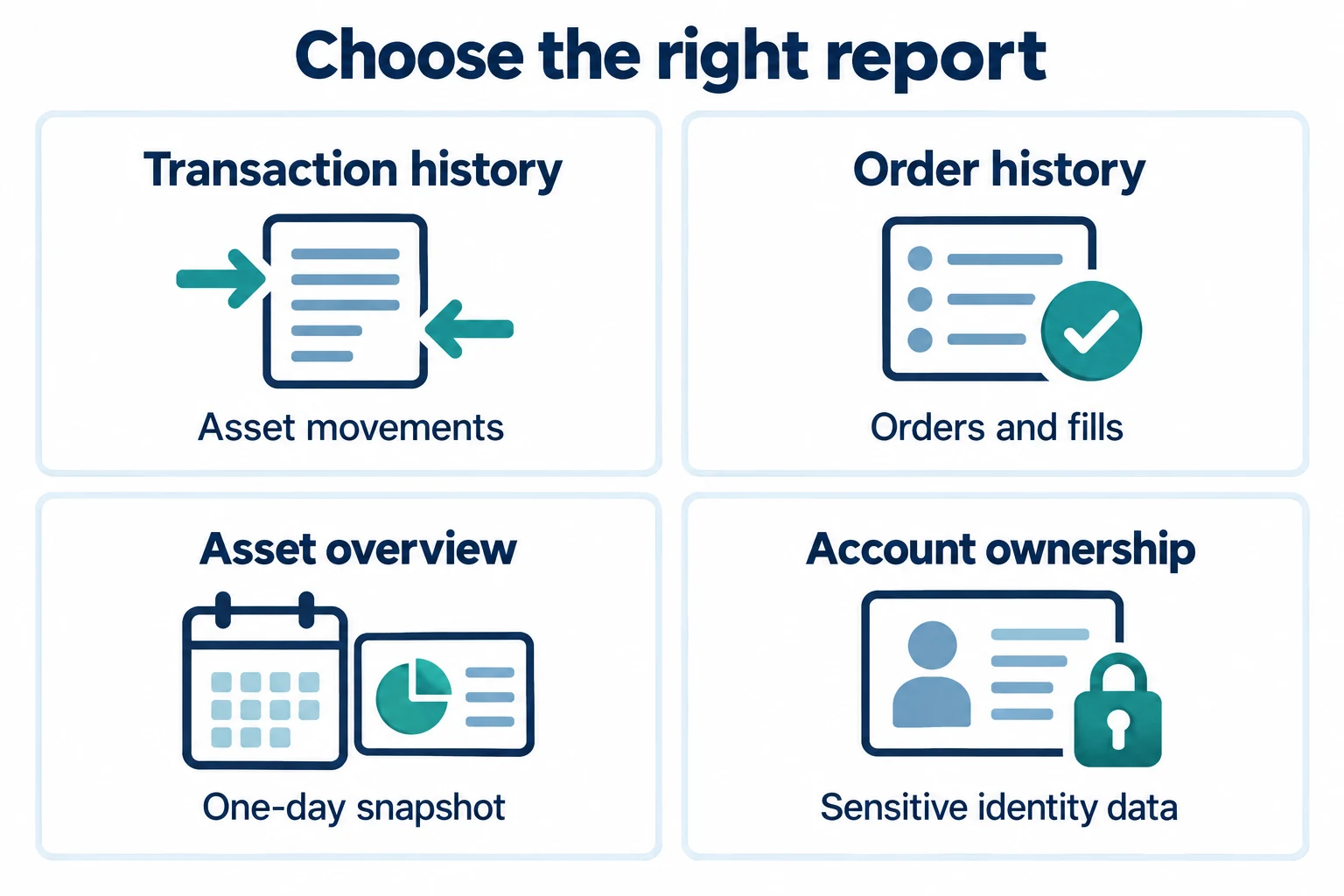
Transaction history vs order history vs account statement
The reports are not interchangeable. Choosing the wrong one is the most common reason a user thinks records or fees are missing.
Transaction history: follow asset movements
Transaction history records movements and balance changes rather than the full lifecycle of a trading order. It is the better starting point when you need to trace deposits, withdrawals, internal transfers, product transfers, fees or a change in a token balance. Bitget’s current help page lists transaction-history exports for Spot, Margin, Futures and Onchain accounts.
Use this report alongside the Bitget deposit and withdrawal guide when reconciling an on-chain transfer. The export can document the platform-side record, but the blockchain transaction ID and destination-chain explorer remain separate evidence.
Order history: review executions and order details
Order history is designed for trading and product orders. Bitget says an order export can include the order time, pair, product category, direction, price, amount, filled quantity, average price, trading volume, status, order ID and fees. Supported history types currently include Spot, Margin, Futures, CFD, Onchain, OTC, Convert, Crypto Loans, Earn and Vouchers.
A canceled or partially filled order may appear here even though its asset movement looks different in transaction history. For a complete trading-cost check, match the order ID and execution details with the fee and balance entries rather than using only one total. The Bitget fee guide explains why execution fees, funding and other costs must be separated.
Asset-overview statement: a one-day balance snapshot
The account statement labeled asset overview summarizes account assets and equity for one selected date across supported account types. It is a PDF snapshot, not a substitute for transaction-level records over a period. Bitget’s current guide says this statement supports data from July 18, 2025 onward.
A daily overview can help establish the reported account value on that date for the supported account types shown in the export screen, but it does not by itself explain how liabilities, unrealized P&L or later transactions changed the balance.
Account-ownership statement: identity evidence
The ownership statement can include UID, KYC information, legal name, identity-document or passport number, nationality, country or region of residence, account-creation date and P2P account details. It may be useful when an authorized institution or professional specifically needs ownership evidence, but it is the most sensitive export. Do not share the raw PDF publicly or send it to an unverified requester.
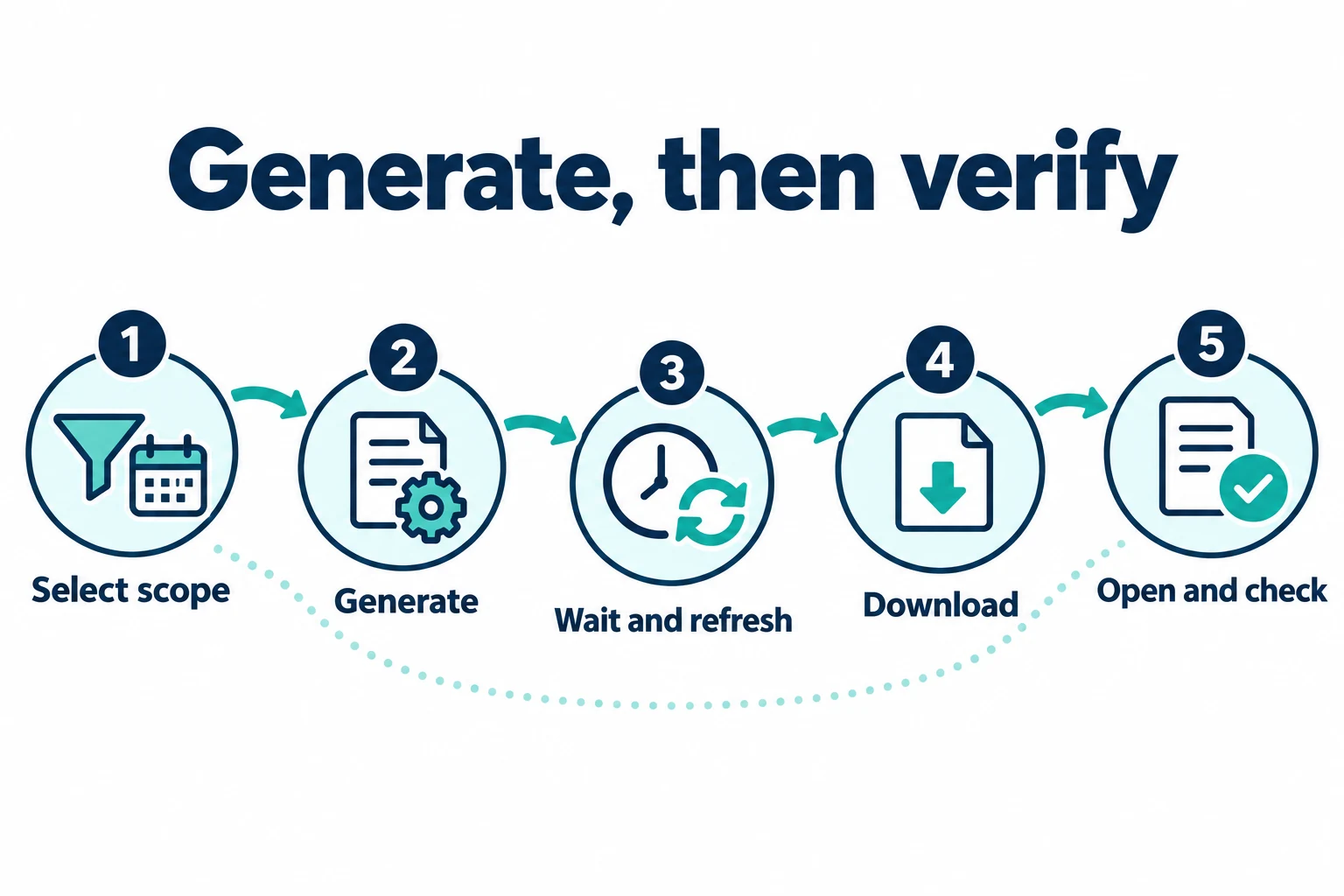
How to export Bitget transaction history
- Use the official Bitget website and sign in to the correct account context. The mobile app does not currently provide the export tool; Bitget recommends Chrome for the web download workflow.
- Open Profile → Accounts, choose the account type shown by Bitget, select its transaction-history icon, and click Download.
- Select the account type and transaction category that match the records you need.
- Choose a preset or custom date range. Keep each request within two years; split longer histories into consecutive non-overlapping ranges.
- Select CSV or Excel. Bitget’s current guide allows up to 100 transaction-history exports per month.
- Generate the file and wait for Bitget’s completion notification.
- Refresh the export-history area, then download the completed file.
- Open the file immediately and check the account, date boundaries, timezone, row count and first and last records.
For a multi-year archive, use clear filenames such as bitget-transaction-history-2024-01-01-to-2025-12-31.csv. Avoid overlapping date ranges unless you plan to deduplicate them, and record the timezone shown by the interface so a midnight boundary does not create an apparent missing or duplicated transaction.
How to export Bitget order history
Bitget currently documents two routes: the central data-export page and the individual order page.
Option 1: central data-export page
- Open order history in the Bitget data-export page.
- Choose the appropriate account and order type.
- Select the time range. In the interface described by Bitget, the “Within 6 months” option supports a range of up to six months and up to 10,000 historical records per request.
- Select Excel, CSV or PDF when that format is offered for the chosen order type.
- Click Generate, wait for completion, refresh the export history and download the result.
Option 2: the product’s order page
- Open Orders and select the relevant product, such as Spot or Futures.
- Switch to Order history rather than Open orders.
- Filter the pair, order type and period before downloading.
- Select the fields and file format offered by the export window.
- Generate the report, then refresh and download it after processing completes.
Use multiple product exports when one file does not contain every activity type. A Futures order report should not be expected to contain a Spot Convert record, an Earn subscription or every wallet transfer.
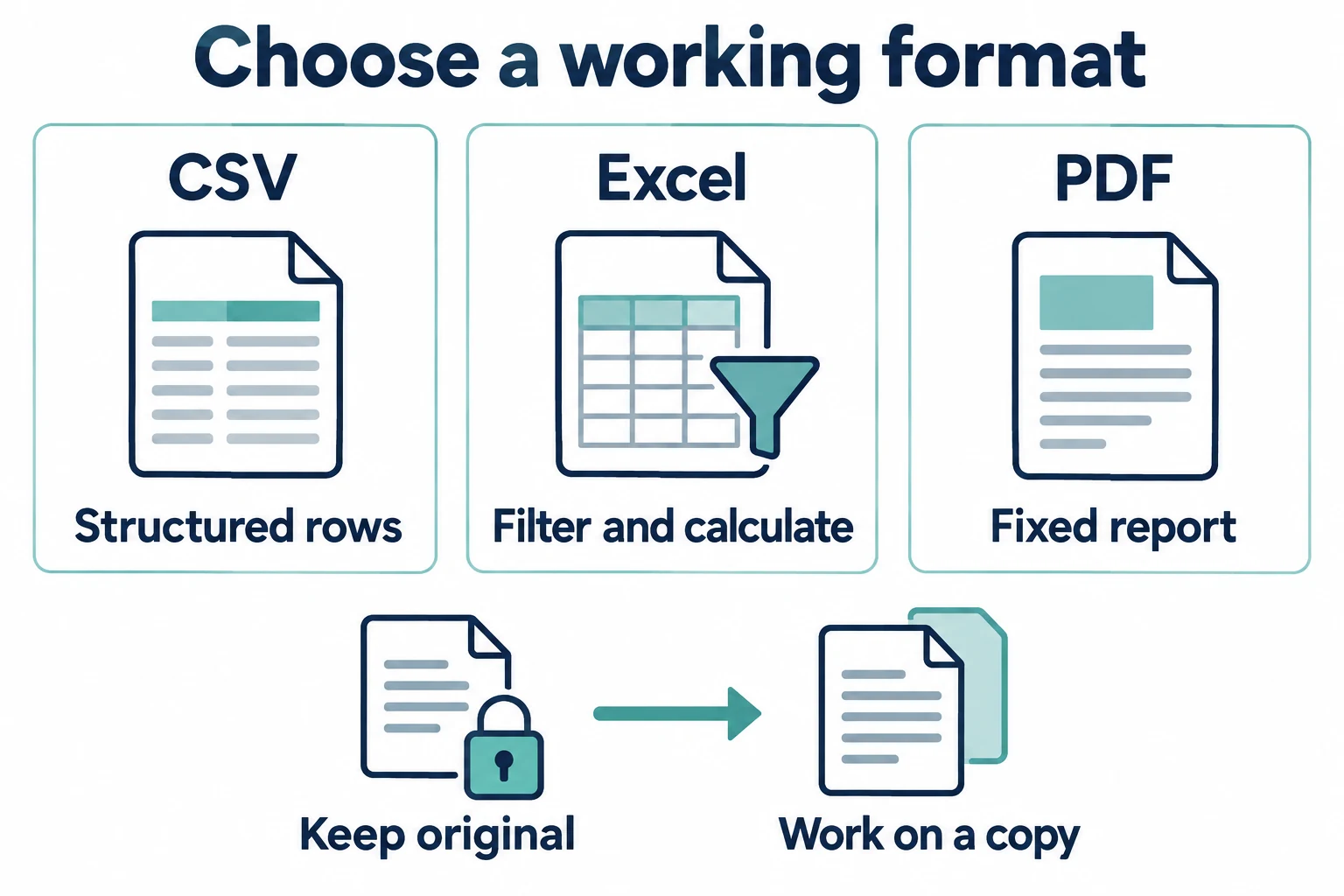
CSV, Excel or PDF: which format is best?
| Format | Best for | Main caution |
|---|---|---|
| CSV | Large datasets, reconciliation tools, spreadsheets, scripts and database import | Dates, long order IDs and decimal values can be reformatted when opened incorrectly; import columns deliberately. |
| Excel | Manual filtering, formulas, sorting and review in a workbook | Do not overwrite the original with edited calculations; preserve an untouched copy. |
| Readable statements, ownership evidence and a fixed visual report | Harder to reconcile row by row and may contain sensitive identity information. |
For accounting or tax preparation, a CSV or Excel file is usually easier to reconcile, while a PDF may be useful as supporting evidence. The export is source data, not a guarantee that a tax calculation or third-party importer has classified every transfer correctly.
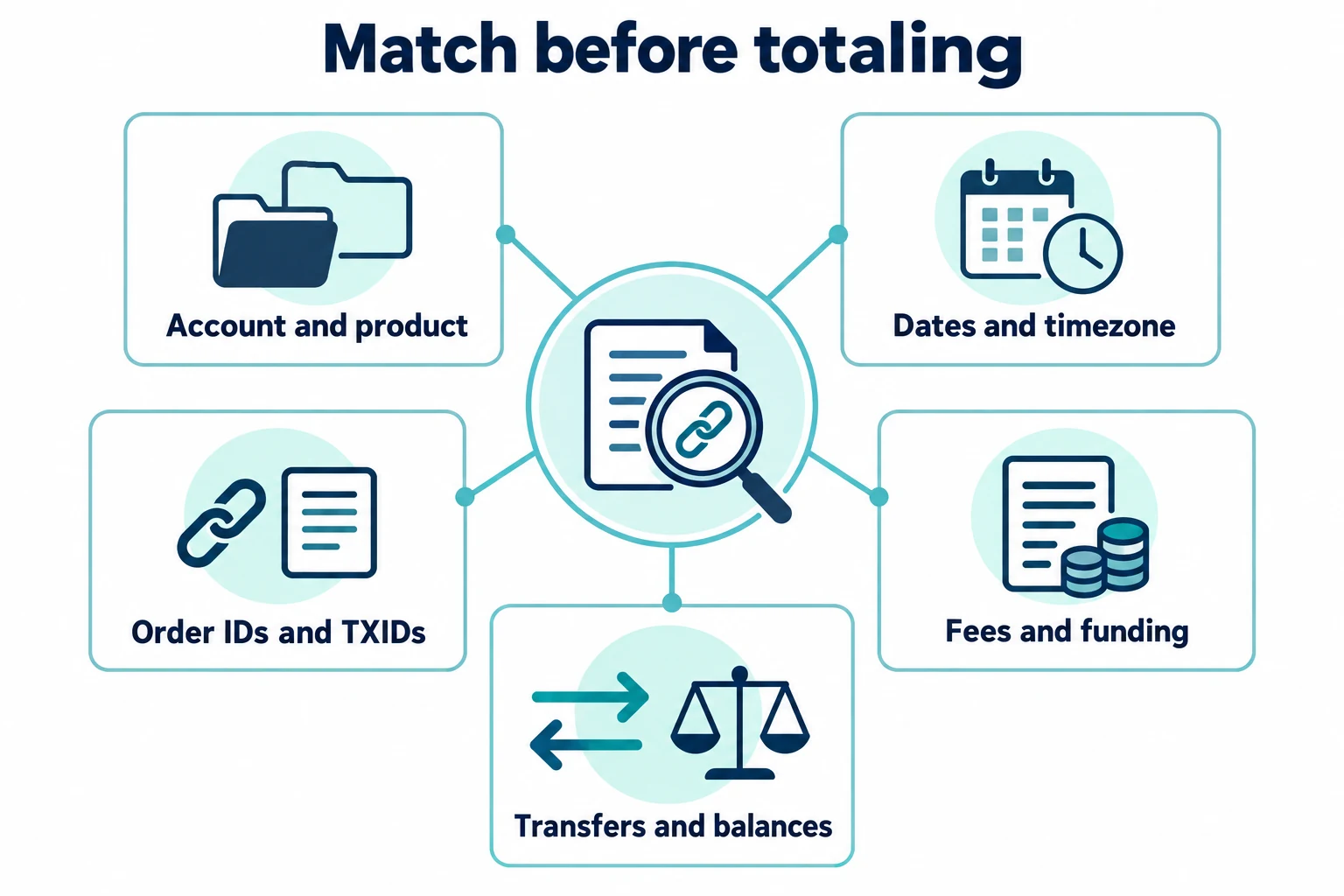
A reconciliation checklist before relying on the export
- Account scope: confirm the account context and account type displayed in the export screen and recorded in the file.
- Product scope: verify Spot, Margin, Futures, Onchain, Convert, Earn and other activities separately when needed.
- Date boundaries: note the timezone and make consecutive ranges non-overlapping.
- Identifiers: preserve full order IDs, transaction IDs and coin symbols as text where necessary.
- Fees: distinguish trading fees, funding, borrowing interest, withdrawal network fees and other deductions.
- Transfers: avoid counting an internal transfer between Bitget account types as a new deposit or disposal without checking its source and destination.
- On-chain evidence: match deposits and withdrawals with TXIDs and the correct blockchain explorer.
- Completeness: compare opening and closing balances where possible and investigate unexplained differences.
- Original copy: keep an unchanged downloaded file and perform cleanup in a duplicate.
Troubleshooting missing or failed Bitget exports
| Problem | Likely check | Safe next step |
|---|---|---|
| No export button in the app | The feature is website-only under Bitget’s current guide. | Use the official Bitget website in a desktop browser. |
| Date range was shortened | The selected period exceeded the two-year maximum per request. | Split the history into consecutive requests of two years or less. |
| Expected trade is missing | Wrong product, account, sub-account, order tab or time boundary. | Check the specific product’s order history and confirm the timezone and account. |
| Download link expired | The seven-day link-validity period passed. | Generate a new export and download it promptly. |
| More than 10,000 recent orders | The selected “Within 6 months” request may exceed the documented record limit. | Use smaller non-overlapping date ranges or separate product filters. |
| Only balance totals are shown | An asset-overview statement was generated instead of transaction or order history. | Create the ledger-style export required for the task. |
| Old Classic futures records are unavailable through the cited API endpoint | Bitget’s Classic futures order-history endpoint documents a 90-day window and directs users to the web download for older data. | Use the official web export for older records and verify the current API documentation for the exact account and product before automating access. |
If the same record remains missing after checking account, product, dates and filters, preserve screenshots of the filters and export-history status before contacting official support. Do not send passwords, authenticator codes, API secrets or an unredacted identity statement through an unverified channel. See the Bitget account-security guide for a broader credential and device checklist.
Protect exported files
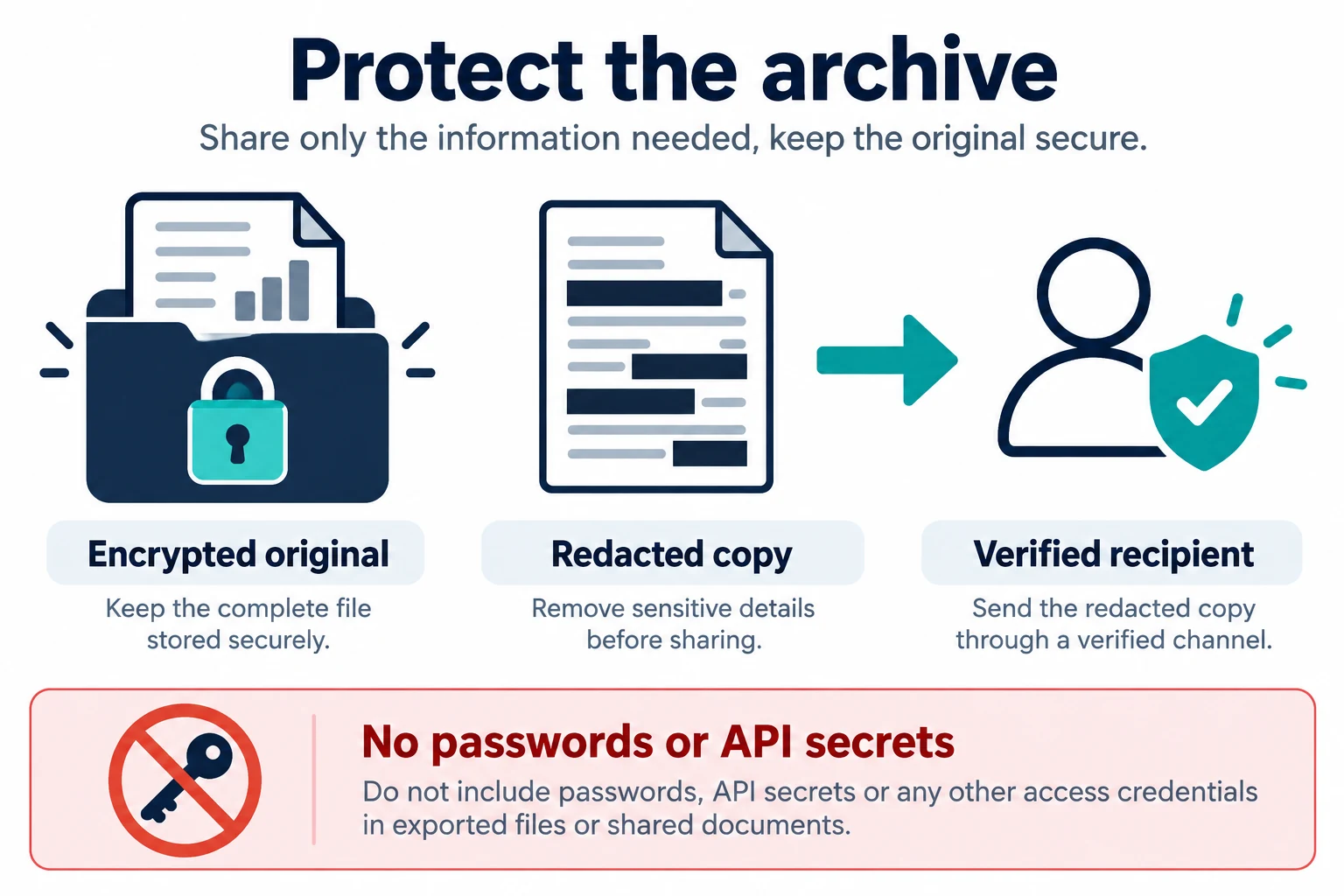
- Store originals in an encrypted device or trusted encrypted archive.
- Remove identity numbers, addresses, UIDs and unrelated transactions before sharing a working copy.
- Verify the recipient and purpose before sending an ownership statement.
- Never include a password, one-time code, API secret or seed phrase in an export folder.
- Delete temporary cloud links and shared copies when they are no longer needed.
- Keep a record of the export date, selected account, product filters, date range and Bitget interface timezone.
Frequently asked questions
Can I export Bitget history from the mobile app?
No. Bitget’s current official guide says account-data export is available on the website and is not supported in the app. Bitget recommends Chrome for the web download workflow.
How far back can I export?
Transaction- and order-history requests currently support a maximum selected range of two years per export. To cover a longer period, create multiple consecutive files. Availability of a specific product’s earliest data can still depend on the account and product.
How long does a generated download remain available?
Bitget currently states that the download link is valid for seven days after the export completes.
Does order history include deposits and withdrawals?
Use transaction history to trace deposits, withdrawals, transfers, fees and balance movements. Order history focuses on trading and product orders. You may need both.
Is a Bitget statement enough for taxes?
Not necessarily. Reporting rules vary by country, and a daily PDF statement is not the same as a complete transaction ledger or a tax calculation. Reconcile the relevant exports and seek qualified local tax advice when necessary.
Can I give an ownership statement to support?
Only through a verified official channel and only when the document is genuinely required. It can contain legal name, KYC and identity-document details. Redact information that the authorized recipient does not need.
Official Bitget sources
Editorial, privacy and risk disclosure
BitQED is an independent Bitget-focused educational site and is not Bitget. This page summarizes Bitget’s published export workflow and adds a recordkeeping checklist. It does not access, download or process a reader’s account data. File formats, history coverage, limits and menu labels can change; the logged-in Bitget interface and current official documentation take priority.
This material is general information, not tax, accounting, legal or investment advice. Exported records can contain financial activity and personal identity data. Verify completeness, protect the files and obtain qualified advice appropriate to your jurisdiction and purpose.
Related guide: Bitget Spot Grid Bot Guide: Settings, Profit Calculation, Fees and Risks (2026)
For futures reconciliation, Bitget futures PnL and ROI explained distinguishes open-position estimates, closed results, reference margin and recorded costs so the two exports are compared on the same basis.